Draw Shell
This window opens when you want to draw a shell. In Songeya, slabs, walls, and other surface elements are collectively referred to as shells. You use this window to define and create these elements.
Once the window is open, you can pick points in the drawing environment to define a boundary. A shell will be created with the specified properties once the contour is closed. You can also add a shell by specifying the coordinates of its boundary directly within this window and clicking the Accept button.
The specified or selected points must define a flat, non-self-intersecting polygon; otherwise, the shell will not be created.
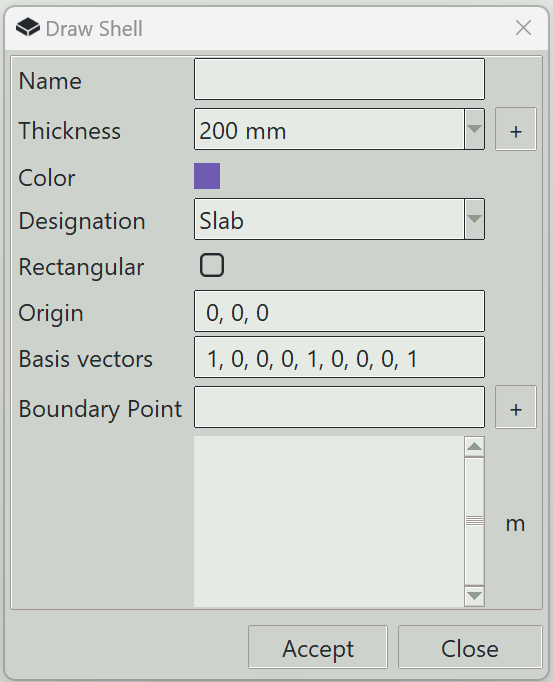
1. Name
You can optionally specify a name for the shell. Otherwise, the program will generate one automatically.
2. Thickness
The thickness property to assign to this shell.
3. + button (thickness)
Opens the thickness definition window so that you can define a new thickness.
4. Color
The color assigned to this shell for visualization.
5. Designation
Specifies whether this shell is a wall or a slab. This information can be useful during design, if supported by your design script.
6. Rectangular
When checked, you only need to enter or pick three (3) points, and a rectangular shell will be created.
7. Origin
You can optionally specify the coordinate system in which the coordinates are defined. This is done by defining an origin and three basis vectors. In this field, you can specify the origin. If left blank, the program assumes 0,0,0.
8. Basis vectors
Here, you specify three vectors that define the coordinate system. If left blank, the program assumes 1,0,0,0,1,0,0,0,1.
9. Boundary point
The x, y, z coordinates of the next boundary point. The point must not make the polygon invalid; o therwise, it will not be accepted.
10. + button (boundary point)
Adds the entered coordinates as a boundary point.
11. Boundary points list
All entered boundary points are shown in this list.
12. Accept button
Creates a shell with the specified properties.
13. Close button
Closes the window and ends the shell drawing command.