Mesh Options
This window is used to set meshing options. It is also used to run the meshing process for a select number of shells. The left pane displays a list of shells available in the model, while the right pane shows the current mesh settings.
If you select specific shells from the list, only those shells will be meshed. Otherwise, all shells in the model will be meshed. In general, meshing all shells at once produces better mesh compatibility and overall quality.
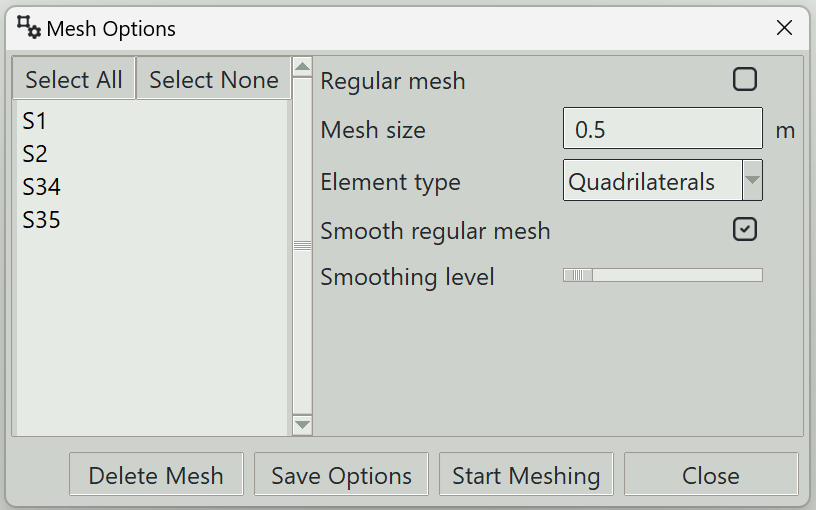
1. Regular mesh
When checked, the program attempts to generate a structured (regular) mesh using quadrilateral elements. This is only possible for certain shell geometries. Structured meshes can still be generated for shells with openings.
2. Mesh size
Specifies the target element size. Smaller mesh sizes generally lead to more accurate analysis results but require more computational resources.
3. Element type
You can choose to generate:
- Quadrilateral elements only
- Triangular elements only
- A combination of both
During analysis, Songeya uses the DKMQ (Discrete Kirchhoff–Mindlin Quadrilateral) formulation for quadrilateral elements and the DKMT (Discrete Kirchhoff–Mindlin Triangular) formulation for triangular elements. These formulations take into account transverse shear deformation and are free from shear locking. Therefore, they are suitable for modeling both thin and thick shells. See the sections on DKMQ and DKMT for more details.
4. Smooth regular mesh
When enabled, the structured mesh will be smoothed; otherwise, it will remain as generated.
5. Smoothing level
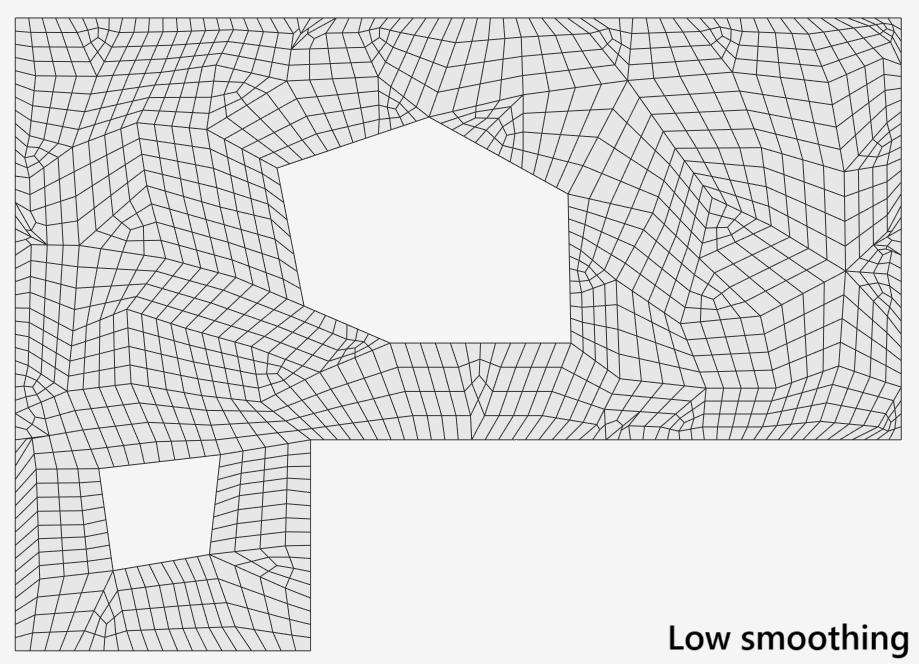
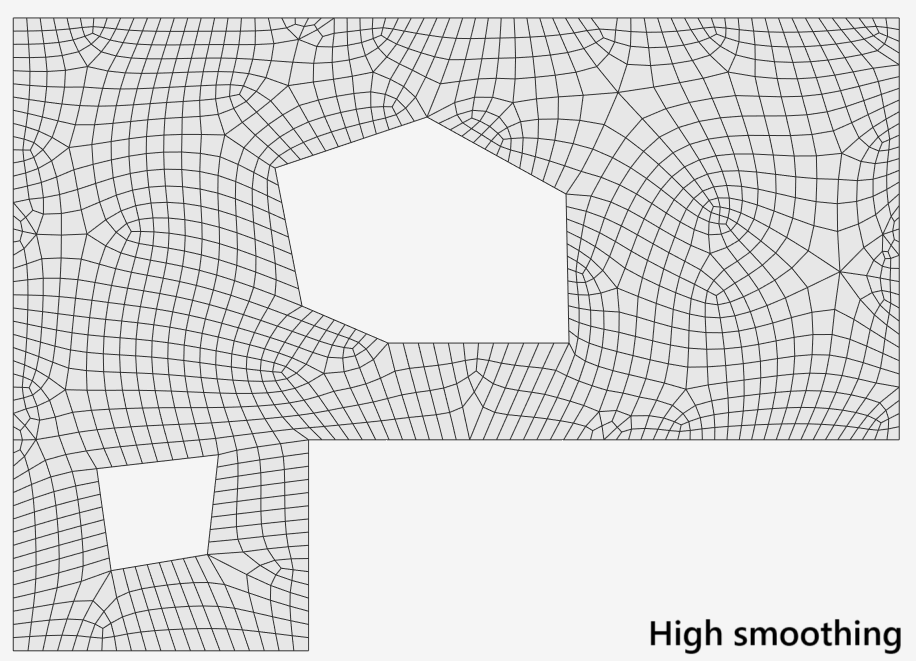
Specifies the level of Laplacian smoothing applied to the mesh. Higher levels generally improve mesh quality up to a certain point. The images below illustrate the effect of low and high smoothing levels.
6. Delete Mesh button
Deletes the mesh for the selected shells.
7. Save Options button
Saves the entered mesh settings.
8. Start Meshing button
Saves the entered mesh settings and starts the meshing process.
9. Close button
Closes the window.