Load Combination Definition
This window is used to add, modify, and manage load combinations. The left pane displays a list of load combinations available in the model, while the right pane shows the parameters of the selected load combination. The same area is also used to input parameters when creating a new load combination.
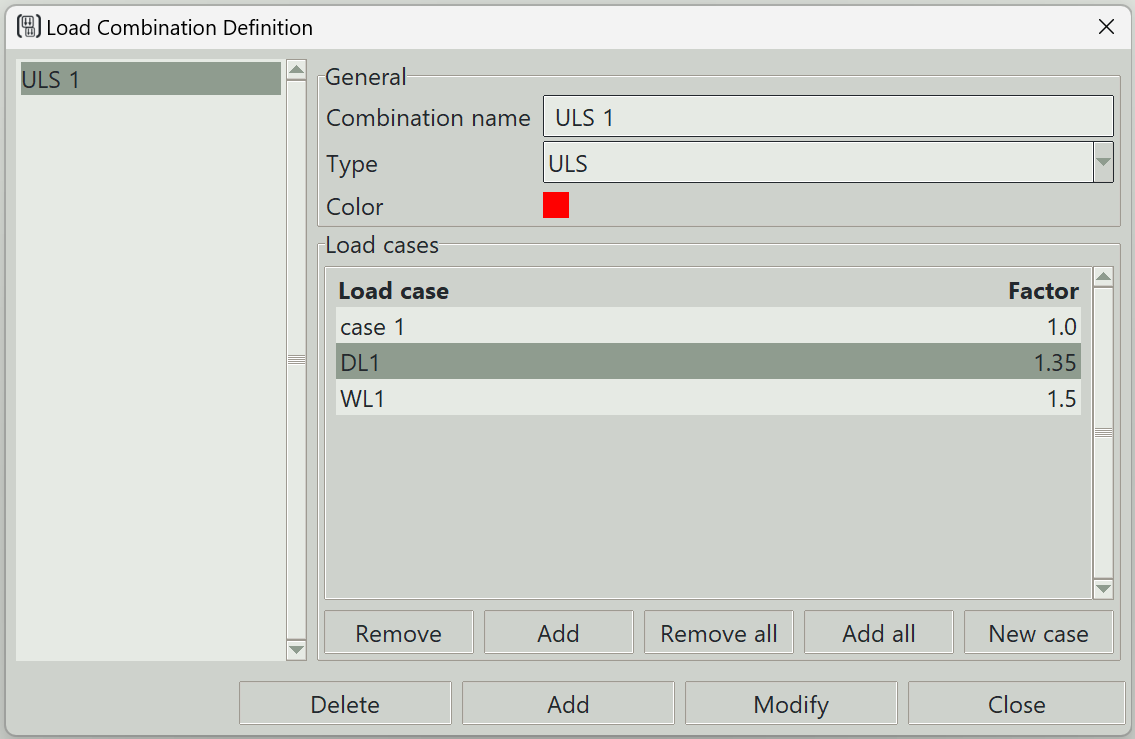
1. Combination name
A unique name for the load combination. It can be left blank, in which case the program will generate one automatically.
2. Type
Specifies the nature or category of the load combination.
3. Color
The color assigned to this load combination for visualization purposes.
4. Load cases table
A table is provided where you can select load cases and assign their combination factors. Several control buttons are available for adding or removing load cases from the table. Double-clicking a cell allows you to edit it, either to select a different load case or to change its factor.
4.1 Remove button
Removes the selected load cases from the table.
4.2 Add button
Adds a load case to the combination, if available.
4.3 Remove all button
Removes all load cases from the combination.
4.4 Add all button
Adds all available load cases to the combination.
4.5 New case
Opens the load case definition window so that you can define a new load case.
5. Delete button
Deletes the selected load combination from the model.
6. Add button
Creates a new load combination using the specified parameters.
7. Modify button
Updates the parameters of the selected load combination.
8. Close button
Closes the window.