Draw Frame
This window opens when you want to draw a frame. In Songeya, beams, columns, truss members, or any kind of bar are collectively considered as frames. You use this window to draw these elements. Once the window is open, you can pick two points in the drawing environment, and a frame will be added with the entered properties. You can also add a frame by specifying the coordinates of the two ends of the frame within this window and clicking the Accept button.
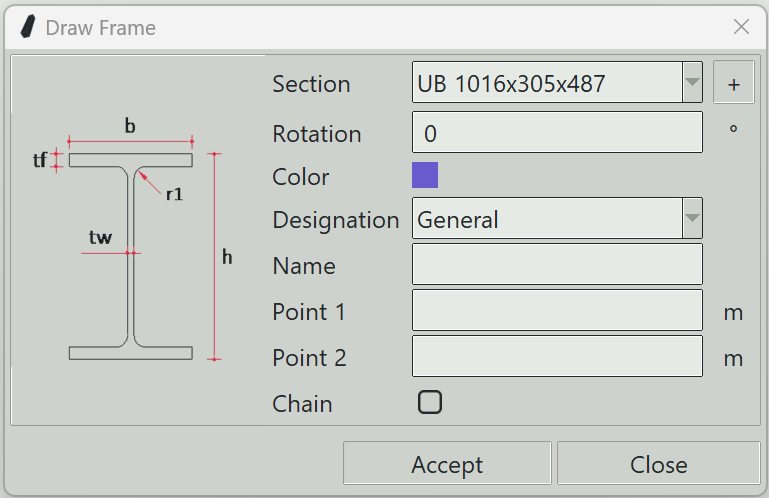
1. Section
The name of the section to assign to this frame.
2. + button
Opens the section definition window so that you can define a new section.
3. Rotation
Songeya will automatically decide an initial orientation of the frame. By default, it will try to make the local z-axis of the frame point upwards. You can specify a rotation here so that the local z-axis of the frame points wherever you want.
4. Color
The color assigned to this frame for visualization.
5. Designation
Specifies whether this frame is a beam, column, or truss member. If you select truss, the program will automatically add releases. You can find out more about releases here. It is also here that you can define whether the bar is tension-only or compression-only.
6. Name
You can specify a name for this frame if you wish.
7. Point 1
Three values specifying the coordinates of the first end of the frame.
8. Point 2
Three values specifying the coordinates of the second end of the frame.
9. Chain
If checked, the last picked point will be considered the first coordinate for the next frame.
10. Accept button
Adds a frame with the entered properties.
11. Close button
Closes the window and ends the frame drawing command.